How to compress a video on iPhone
You can make a video smaller on iPhone without uploading it anywhere. The file shrinks when its resolution or bitrate goes down, so some detail is always lost. What matters is how much you can accept for where the video is going.
Here are three ways, starting with Apple's free method.
Which method fits
| Your situation | Use |
|---|---|
| You have an iPhone 12 or later on iOS 26 and want a free option | iMovie |
| You have an older iPhone, or want to see the estimated size before compressing | SnapSlim |
| You want future videos to take less space | Camera settings |
Method 1: Export a smaller copy with iMovie
iMovie is Apple's free video editor. Apple's steps are written for an iPhone 12 or later on iOS 26 or later; on older devices the steps and options may differ.
- Open iMovie, start a new movie project and add your video from the photo library.
- Tap the share icon at the bottom of the screen, then tap Save or Share Video.
- Tap Options and choose 720, 540 or 360.
- Tap Done, then choose where to save the file.
- Apple estimates that one minute of video is about 19–27 MB at 720, 12–16 MB at 540 and 6–9 MB at 360.
- Apple describes 540 as suitable for social media and 360 as suitable for text messaging.
Method 2: Compress with SnapSlim
SnapSlim is my app, so weigh this section accordingly. It works on iPhone and iPad with iOS 15 or later, compresses on the device and shows an estimated output size for each option before you start.
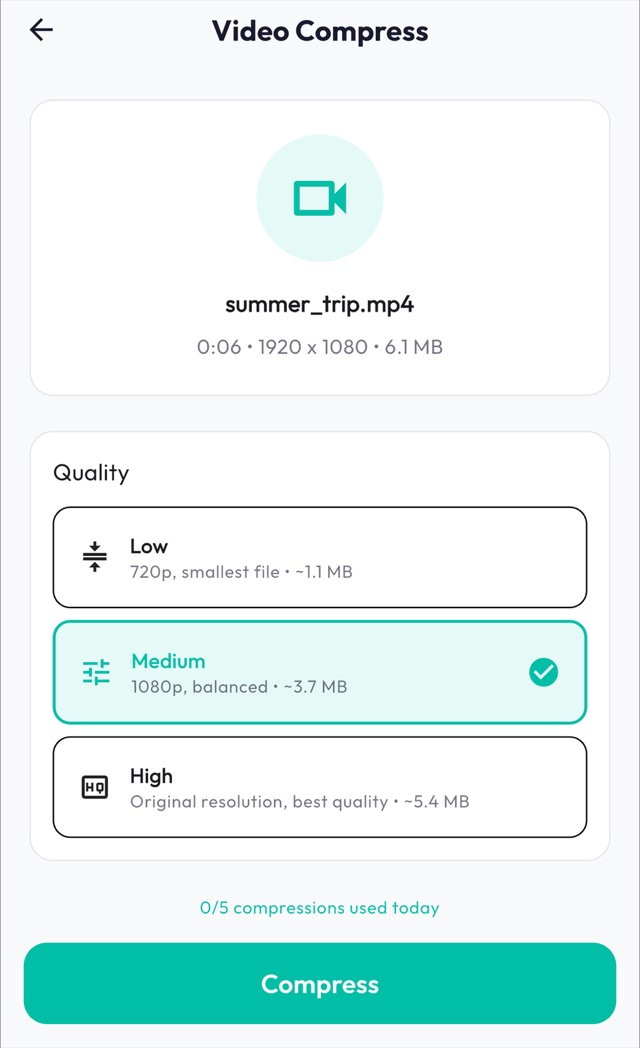
- Open SnapSlim, tap Video Compress and choose a video.
- Pick Low (720p, smallest file), Medium (1080p, balanced) or High (original resolution). Each option shows an estimated size.
- Tap Compress. You can cancel a long video midway.
- Tap Save to Gallery, or Share to send the result straight to another app.
- The result is an MP4 with H.264 video and AAC audio.
- The free plan includes 5 operations a day and shows ads. Premium removes the limit and the ads, and can also remove the audio track.
- A video that is already heavily compressed may shrink very little, especially on High.
Method 3: Record smaller videos from now on
This doesn't change videos you already have, but it saves space on new ones.
- Open Settings, then Camera, then Record Video, and choose a lower resolution or frame rate.
- In Settings, then Camera, then Formats, choose High Efficiency if it isn't already selected.
Freeing up the space afterwards
Compressing creates a new copy, and the original stays in your library until you delete it. Check the copy first. Deleted videos stay in Recently Deleted for 30 days, so the space comes back only after they leave that album or you remove them from it.
Compress on your iPhone
SnapSlim is free to download and includes 5 operations a day, with ads. Your files are compressed on the device and never uploaded.
Download on the App StoreRelated guide: Video too large to send from iPhone